
Learn how to send a custom text message to all, some, or just one of your participants, and how to save texts to reuse later.
Advanced Texting Required
To use the Send Custom Text option, the Advanced Texting feature set must be enabled first. See How To Set Up Advanced Texting for how to set it up.
Send a Custom Text
Before You Send
- You need Admin access to send texts from this page.
- Only licensed accounts can send texts.
- If you have no text credits left, you are asked to buy more on the Text Settings page before sending.
- Only participants with a valid phone number receive the text.
- From the main event dashboard, click Communication → Texting → Send Custom Text to open the Send Text dashboard.
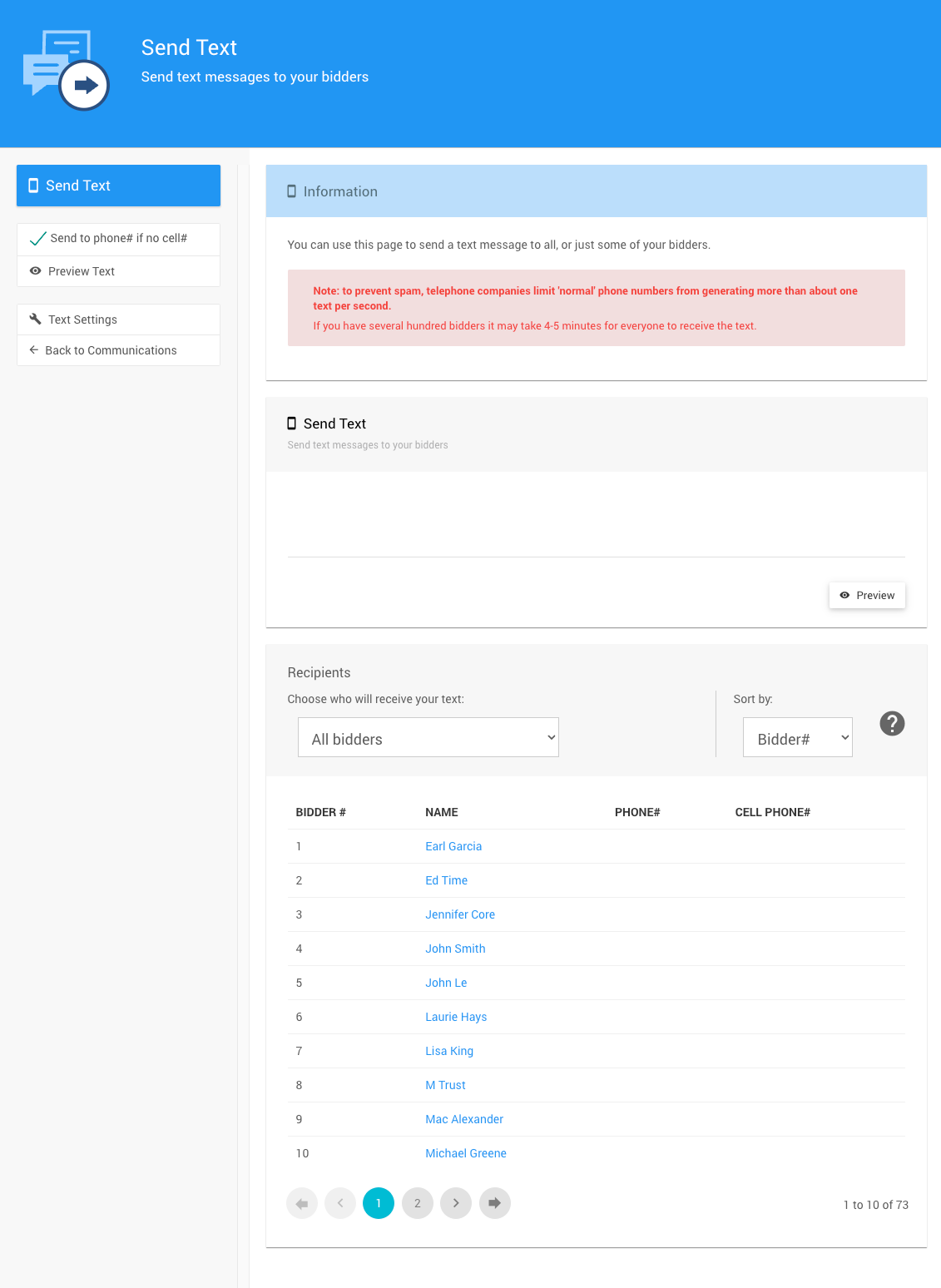
The Send Text dashboard from a demonstration event.
- Write your message in the Message box, or choose one from Saved texts. See Saved Texts.
- Select your Recipients. See Choose Participants Filters for how to choose which participants to text.
- Click Send Text in the sidebar.
- In the pop-up window, confirm the number of participants to send the text.
Message Length
A message can be up to 1,000 characters. Under the Message box, a counter shows how many characters you have used and how many text credits the message uses per recipient.
Text messages are sent in segments of about 160 characters if they contain only standard characters. Including emojis or accented characters cuts this limit roughly in half. Each segment uses one text credit, and a longer message is automatically split into multiple segments.
If special characters are making your message longer, a warning shows how many segments you could save. Click Optimize Message to replace those characters with standard ones.
Personalize Your Message
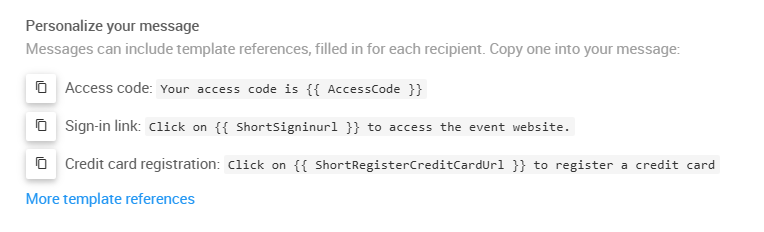
The Personalize your message section of the Send Text dashboard.
The Personalize your message section under the Message box has copy buttons for three common placeholders: the participant's access code, a sign-in link, and a credit card registration link. Click a copy button, then paste the text into your message. See Sample Text Message Add-Ons for more placeholders you can use.
Saved Texts
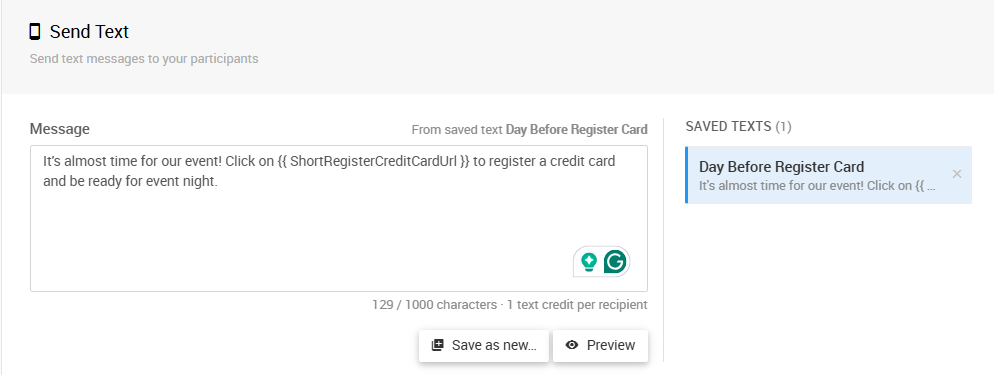
A saved text loaded into the Message box, from a demonstration event.
Save messages you send often, like a check-in reminder or a link to the event website, so you can reuse them any time without retyping them. Saved texts are kept with your event and are shared with everyone who manages it. They are listed in the Saved texts panel beside the Message box.
Plan Ahead
Write your texts before the event and save them. On the day, choose a saved text, pick your recipients, and send it.
Save a New Text
- Write your message in the Message box.
- Click Save as new... under the message.
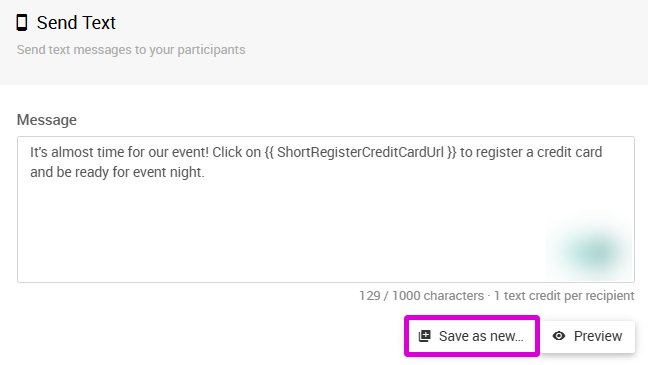
The Save as new... button under the Message box.
- Enter a name for the saved text (up to
100 characters) and click Save.
Each saved text needs a different name. A message that is empty or over 1,000 characters can't be saved.
Use a Saved Text
- Click a saved text in the Saved texts panel. Its message appears in the Message box, with From saved text and its name shown above it.
- Make any changes you need for this send. The label changes to Edited from to show the message no longer matches the saved text.
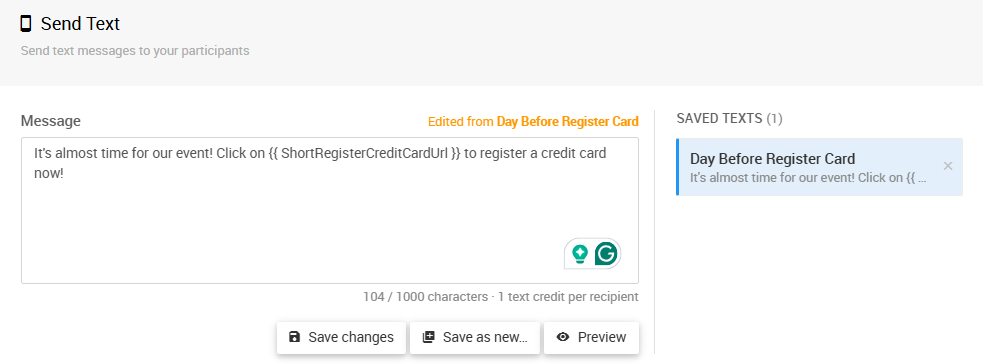
An edited saved text, showing the Edited from label and the Save changes button.
- Select your Recipients and click Send Text.
If you have already typed a message that isn't saved, you are asked to confirm before the saved text replaces it.
Update a Saved Text
- Click the saved text in the Saved texts panel.
- Edit the message.
- Click Save changes to replace the saved text with your edited version.
To keep the original and save your edits separately, click Save as new... instead and give it a new name.
Delete a Saved Text
- Click the X next to the saved text in the Saved texts panel.
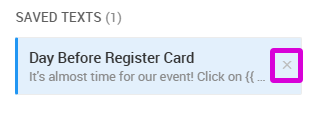
The X button for deleting a saved text.
- Click Delete to confirm.
Deleting a saved text does not affect any texts that were already sent.
Permissions
You need Power User access or higher to save, update, or delete saved texts. Other users can still see and use them. See User Accounts for permission levels.
Actions
The Send Text sidebar has these actions:
| Action | Description |
|---|---|
| Send Text | Sends the text message to the chosen Recipients. Requires Admin access. |
| Send to phone# if no cell# | Uses the participant's telephone number if there is no cell phone number in their Participant Details. |
| Preview Text | Shows a pop-up window with a preview of the text message from the Message box. The Preview button under the message does the same. |
| Text Settings | Opens the Text Settings page. |
| Back to Communications | Returns to the Communication dashboard. |
Sample Text Message Add-Ons
Advanced feature
Using Liquid placeholders in text messages is considered an advanced use case, and support may be limited.
See Reference Lists for a list of available references.
Placeholders insert each participant's own details, such as their access code or table number, into the message. You can use as many placeholders as you need in one message. The samples below show some common ones.
Include an Access Code
To text a participant's access code, you could use something like this:
Your access code is {{ AccessCode }}
For more about access codes, see Participant Online Access And Tokens.
Include a Link to the Sign In Page
To text a link to the Sign In page, you could use something like this:
Click on {{ ShortSignInUrl }} to access the website.
Send a Request for Credit Card Registration
To text a link to the Request Credit Card Registration system page, you could use something like this:
Click on {{ ShortRegisterCreditCardUrl }} to access your credit card registration page.
Send a Participant's Table Number
To text a participant's table number, you could use something like this:
You are seated at table# {{ AssignedTable.Number }}.
For more about tables, see Tables And Seating.
Text Message Sending Limits
To help prevent spam, telephone carriers limit the number of text messages that can be sent. These limits follow the A2P 10DLC regulations.
Auctria doesn't control these limits. If you send 100 texts at once, they may take several minutes to arrive.