
The Item Donor Details page shows one Item Donor's contact details, logo, donations, and change history, and lets you edit, merge, or send a receipt to that donor.
An Item Donor is a person, company, or organization that has contributed an item to your fundraiser for you to auction, sell, or raffle off to participants. Item Donors are saved at the organization level, so they're available across all of your events.
See Item Donors for details on adding and managing donors.
How Did I Get Here?
Search for the Item Donor's name in the search bar in the Item Donors Dashboard header. Click their name in the drop-down, or press Enter/Return, to open their Item Donor Details page.
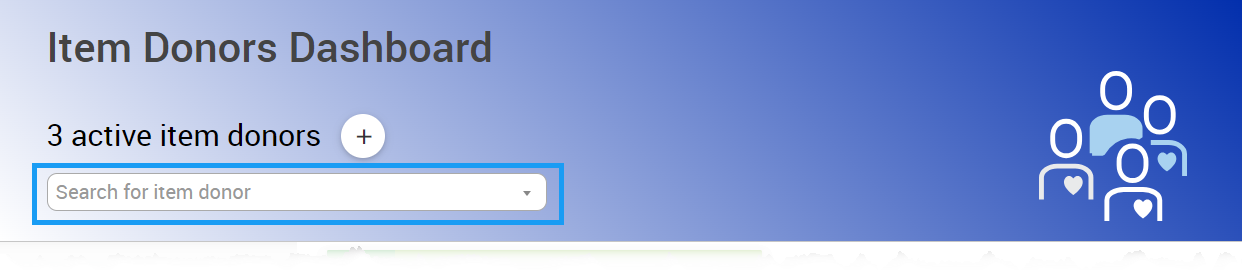
An example from a demonstration event.
You can also:
- Double-click the Item Donor's name in the Recently added item donors list on the Item Donors Dashboard.
- Find the Item Donor in the All Item Donors report. To open it, click the # of item donors block or the All Item Donors button on the Item Donors Dashboard.
Item Donors Are Shared Across Events
Item Donors are stored at the organization level rather than per event. Any changes you make on this page affect all of your organization's events.
Item Donor Details Page
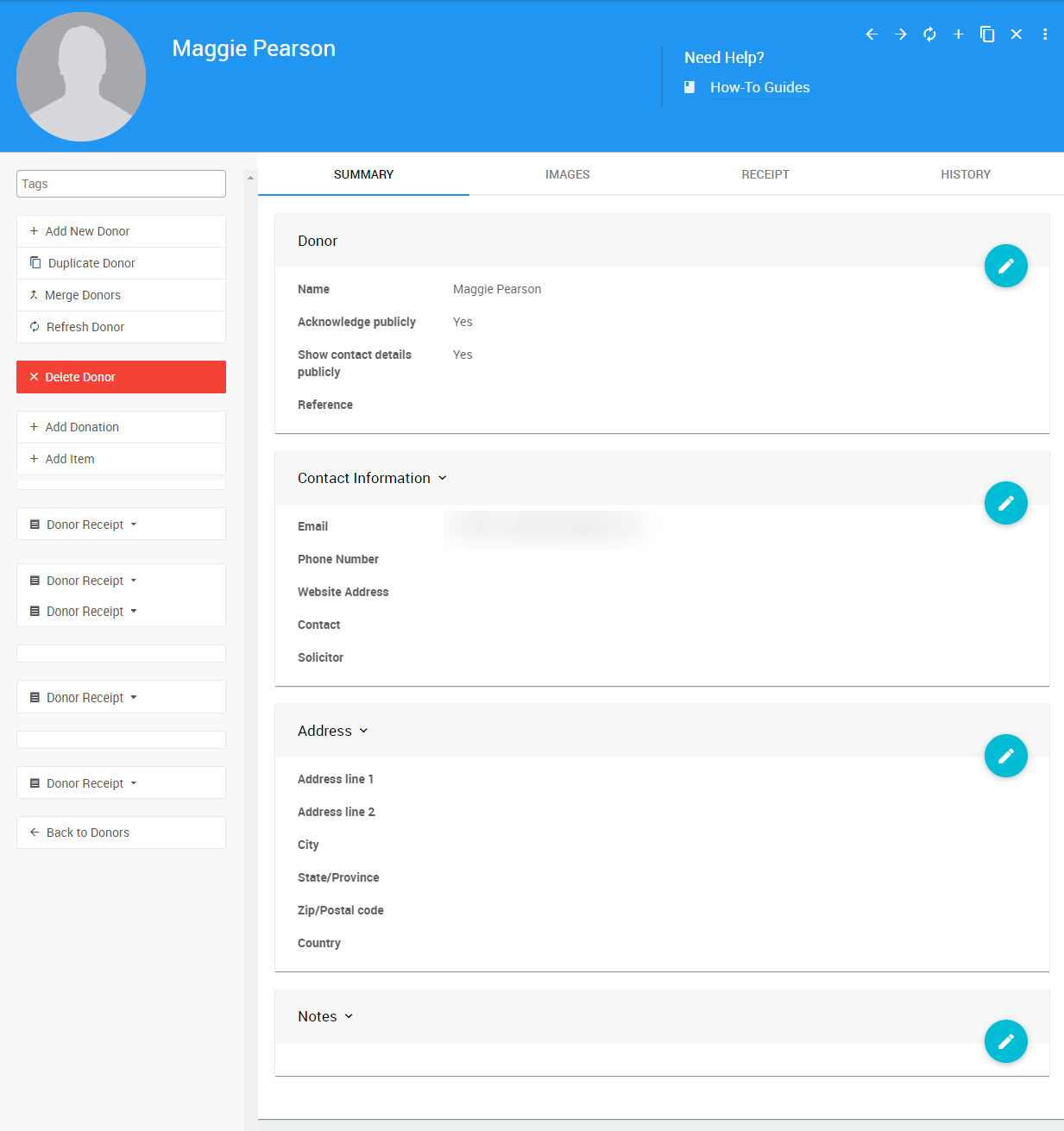
An example Item Donor Details page from a demonstration event.
| Tab | Description |
|---|---|
| Summary | Edit the Item Donor's information, and choose whether they appear on your event website. |
| Images | Upload an image or logo for the Item Donor. |
| Receipt | See the items and in-kind donations the Item Donor gave to an event you select. |
| History | See the audit history of changes made to the Item Donor's record. |
Summary
The Summary tab opens by default. To update the Item Donor's information, edit the fields in each panel.
How To Edit Dashboard Panel Settings
You can edit panel settings by clicking on the pencil icon to open the panel for editing.

Panel in "saved" mode.
Once you have made your changes, click the checkmark icon to save these changes. If you have opened multiple panels in a dashboard, you must click each checkmark to keep their settings.

Panel in "edit" mode.
You can click the return arrow icon if you do not want to save your changes.
Donor
| Field | Description |
|---|---|
| Name | The Item Donor's name. |
| Acknowledge publicly | When checked, shows the Item Donor's name and logo (if one has been uploaded) in the Donors section of your event website. |
| Show contact details publicly | When checked, shows the Item Donor's contact details on your event website. |
| Reference | Optional. The Item Donor's ID from another system. |
Contact Information
| Field | Description |
|---|---|
| The Item Donor's email address. Donor receipts are sent to this address. | |
| Phone Number | The Item Donor's phone number. |
| Website Address | The Item Donor's website. |
| Contact | Optional. If the Item Donor is a company, the person at the company to contact about donations. |
| Solicitor | Optional. The person in your organization who is in touch with this Item Donor. |
Address
The Address panel holds the Item Donor's mailing address: Address line 1, Address line 2, City, State/Province, Zip/Postal code, and Country.
Custom Fields
If your organization has added custom fields to the Item Donor table, they appear in the Custom Fields panel.
Notes
The Notes panel is a free-form space for anything you want to keep about the Item Donor.
Images
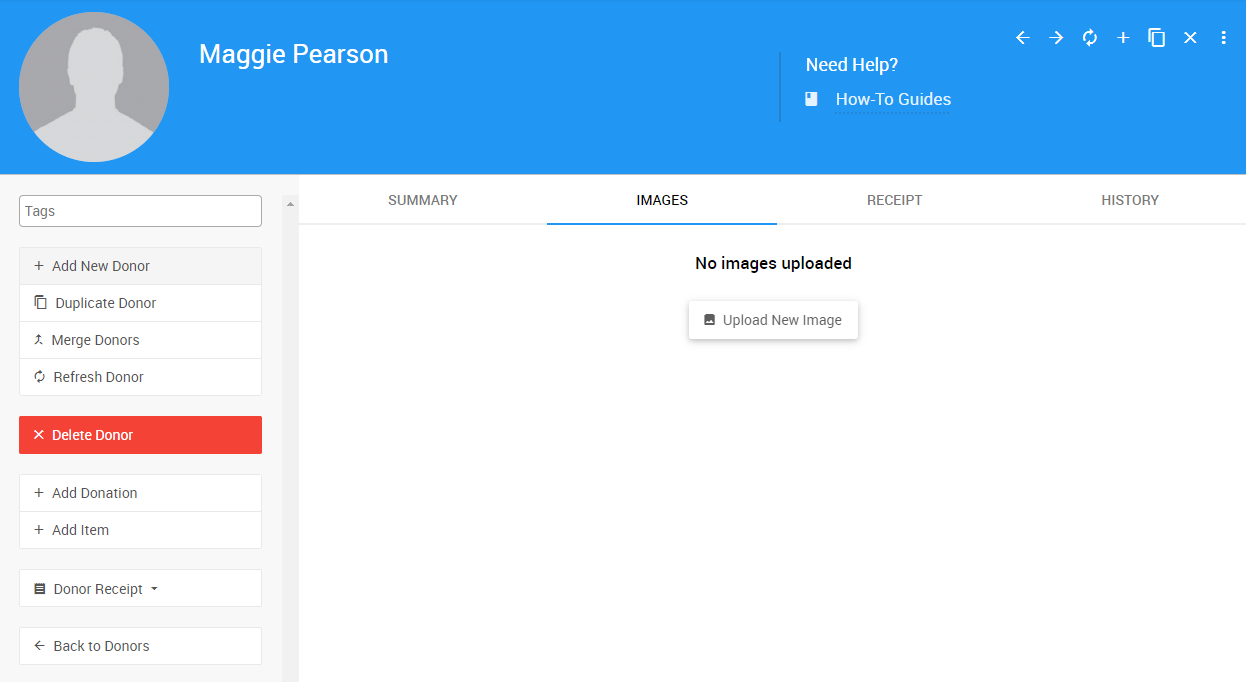
An example from a demonstration event.
Use the Images tab to upload an image of the Item Donor, or a logo if the Item Donor is a company.
Receipt
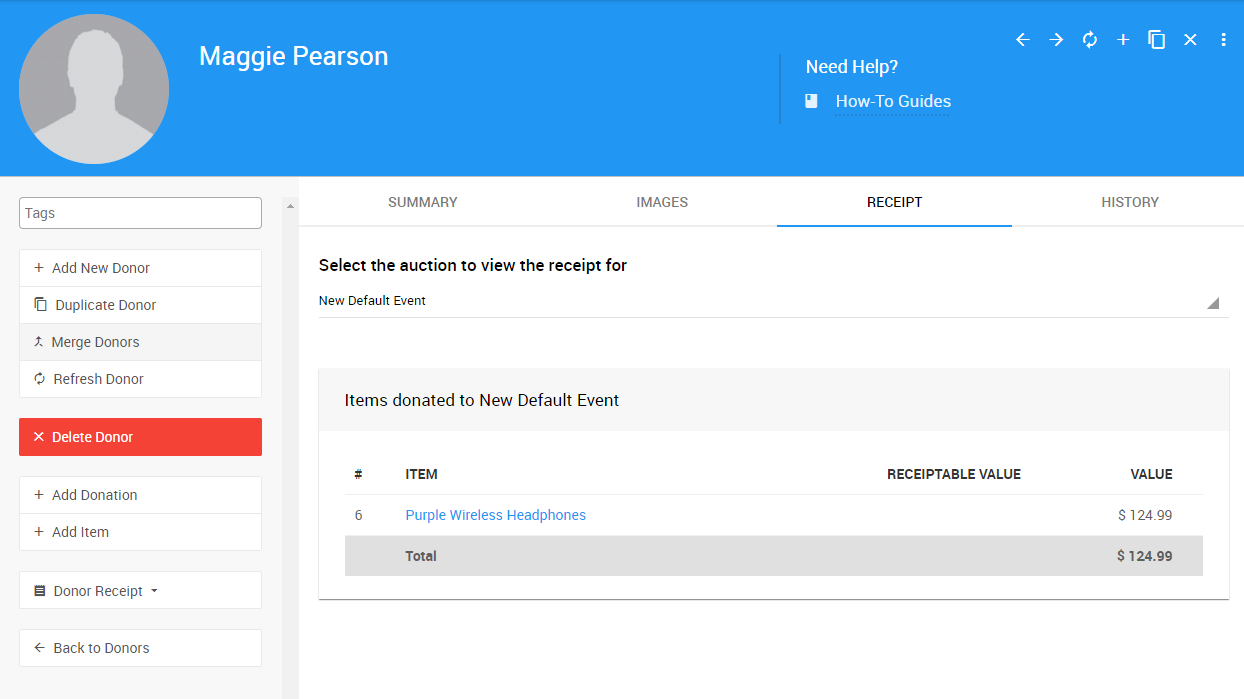
An example from a demonstration event.
The Receipt tab shows what the Item Donor gave to an event. Use the Select the auction to view the receipt for drop-down to switch between the events this Item Donor has donated to. It opens on the current event.
| Table | Shows |
|---|---|
| Items donated | The Item Number, Title, Receiptable Value (if applicable), and Value of each donated item. |
| Donations | The Description, Receiptable Value (if applicable), and Value of each in-kind donation. To remove an in-kind donation, click the × icon on its row. |
Each table shows a total at the bottom.
History
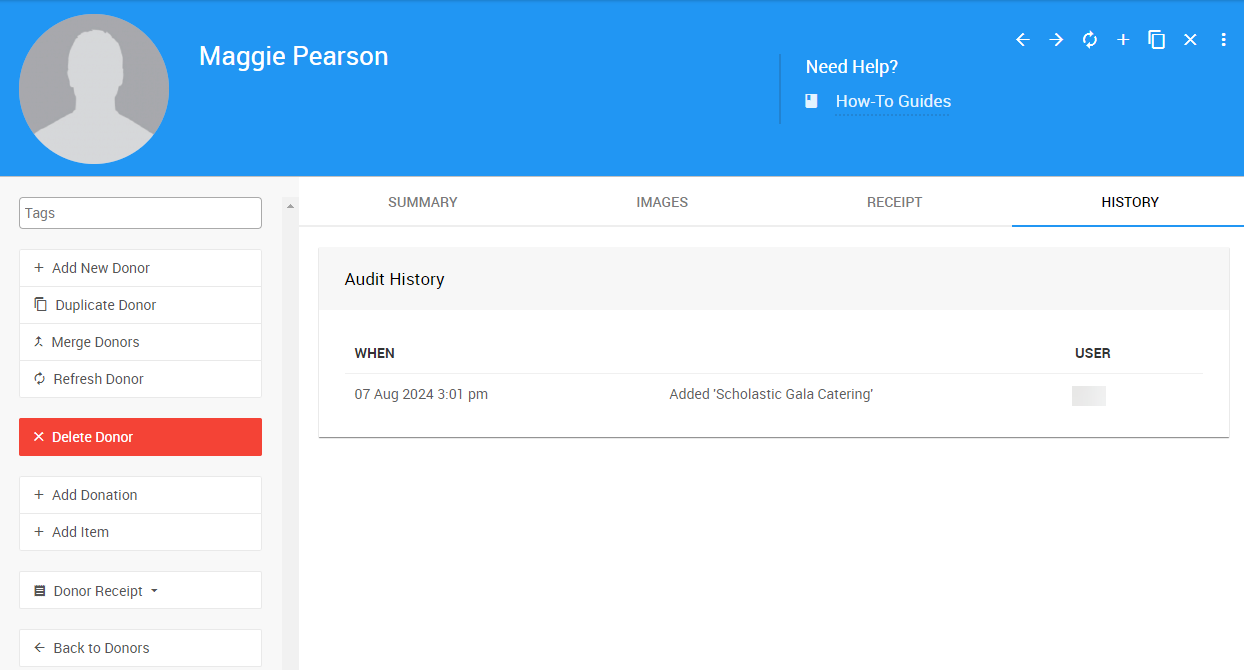
An example from a demonstration event.
The History tab shows the audit history of the Item Donor's record: when each change was made, what changed, and which user made it.
Actions
The left sidebar of the Item Donor Details page has the following actions.
| Action | Description |
|---|---|
| Add New Donor | Opens a blank Add Item Donor page. |
| Duplicate Donor | Opens the Add Item Donor page with this Item Donor's information filled in. The logo is not copied. |
| Merge Donors | Opens the Merge Donors panel. Select another Item Donor to merge into this one. The Item Donor you select is deleted, and all of their activity moves to this Item Donor. |
| Refresh Donor | Reloads the page with the latest information. |
| Delete Donor | Deletes this Item Donor's record. |
| Add Donation | Opens the Add In-Kind Donation page with this Item Donor in the Donated by field. |
| Add Item | Opens the Add Item page with this Item Donor in the Donated by field. |
Note
Merge Donors and Delete Donor are only shown to users with the Power User permission or higher.
Donor Receipt
Use the Donor Receipt actions to preview, print, or email this Item Donor's receipt for the event. To change what receipts include, see Item Donor Receipts.
| Action | Description |
|---|---|
| Show Receipt PDF | Creates a PDF of the Item Donor's receipt. |
| Preview Receipt | Shows a preview of the receipt email. |
| Send Receipt | Emails the receipt to the address on the Summary tab. |