
Learn how to use the Change field on a report to set the same value on many records at once.
You can make mass changes from any report that supports editing.
Use With Care
Mass changes are a powerful way to change your data. In general, a mass change doesn't trigger any other logic around the change.
Step 1: Open the Edit Panel
Open the report with the records you want to change, then click Edit in the report toolbar. The Change and Tag editor fields open above the report.
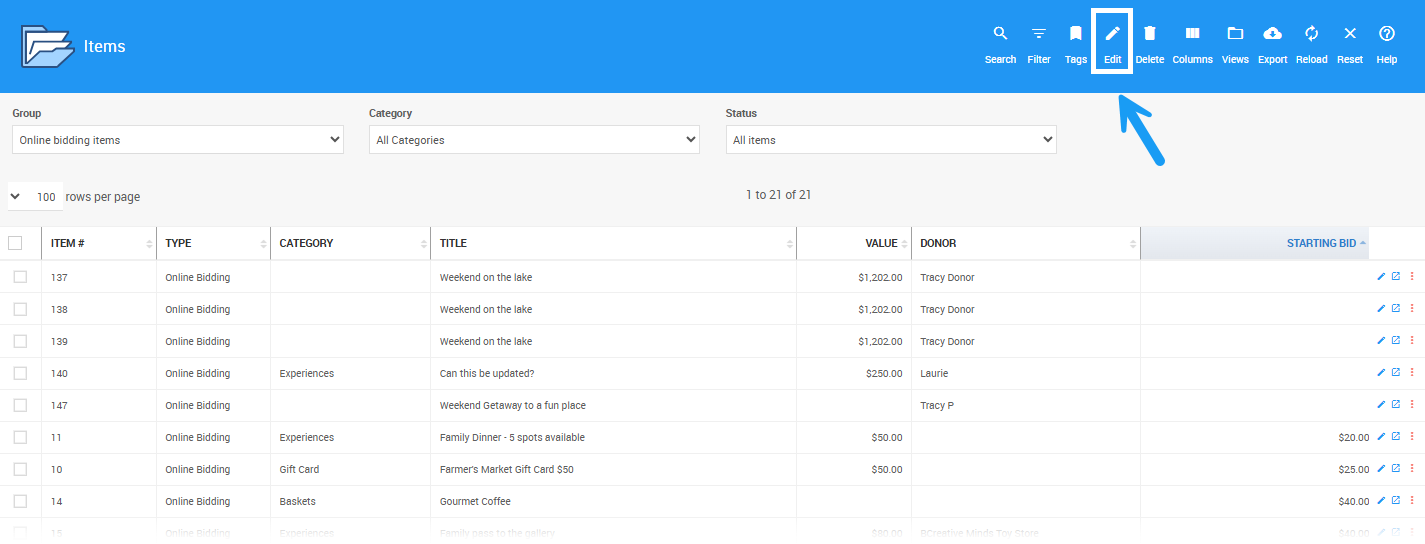
An example from a demonstration event.
This example uses the All Items (Current Event) report, with the Starting Bid column added and the Group selector set to Online bidding items, to find the online items that still need a starting bid. See Report Configuration.
Step 2: Select the Records
Tick the checkbox beside each record you want to change. To select every record on the page, tick the checkbox at the top left of the list, beside the column headings.
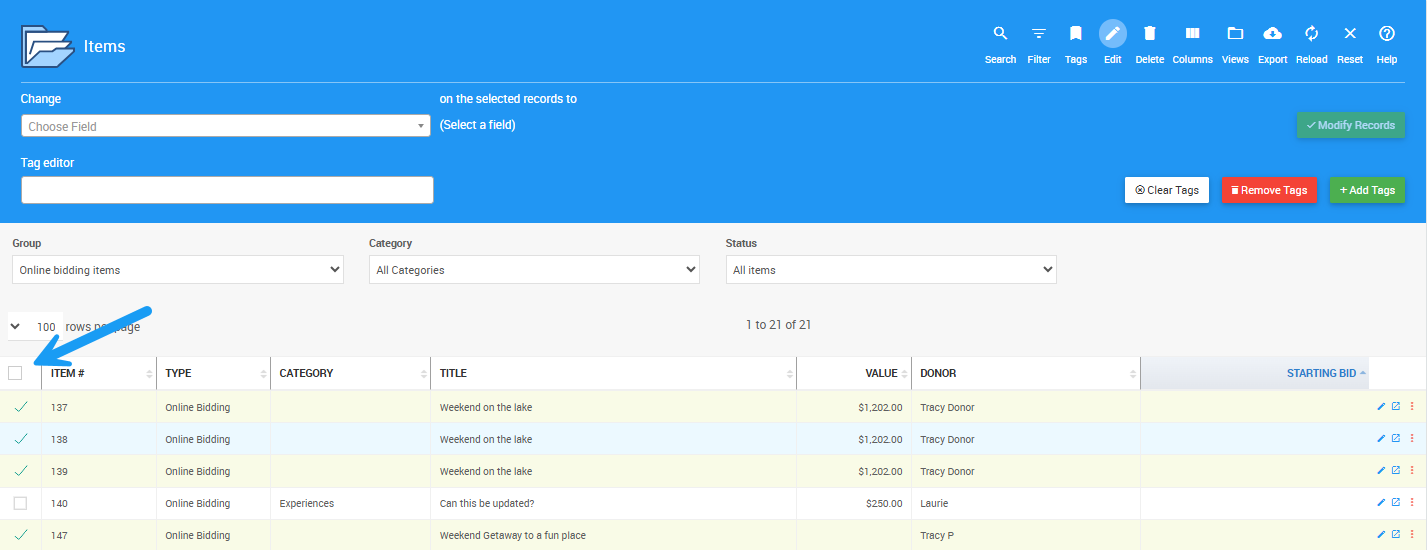
An example from a demonstration event.
Only the Current Page Is Changed
If the report has more than one page, set Rows per page to All before you select the records. Otherwise, only the records on the page you're viewing are changed.

The Rows per page options.
Step 3: Choose the Field and Value
- Click the Change field and choose the field to change. You can type to search.
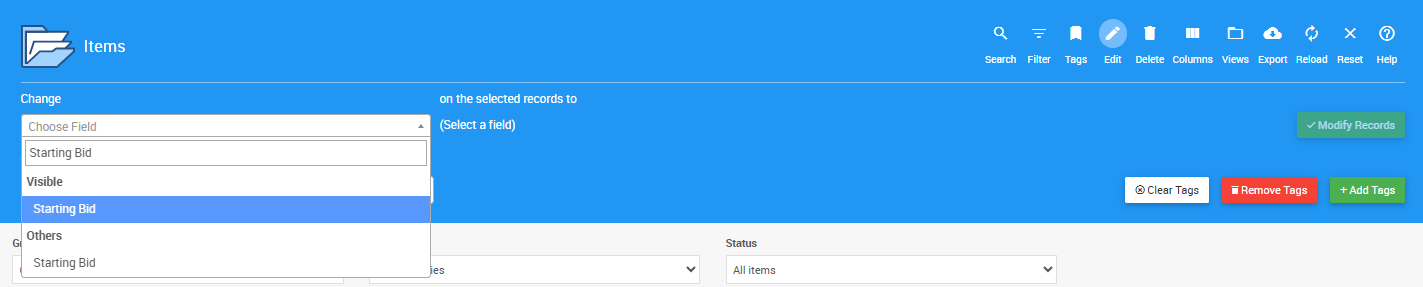
An example from a demonstration event.
Fields shown in the report are listed under Visible. Every other field in the report's table is listed under Others, so you aren't limited to the columns you can see.
- Enter the new value in on the selected records to. Some fields have a list of values to choose from.

An example from a demonstration event.
Step 4: Modify the Records
- Click Modify Records, at the right of the on the selected records to field. The Change Records box asks you to confirm.

An example from a demonstration event.
- Click Continue to save the changes.
If the field you changed is shown in the report, its column updates right away.
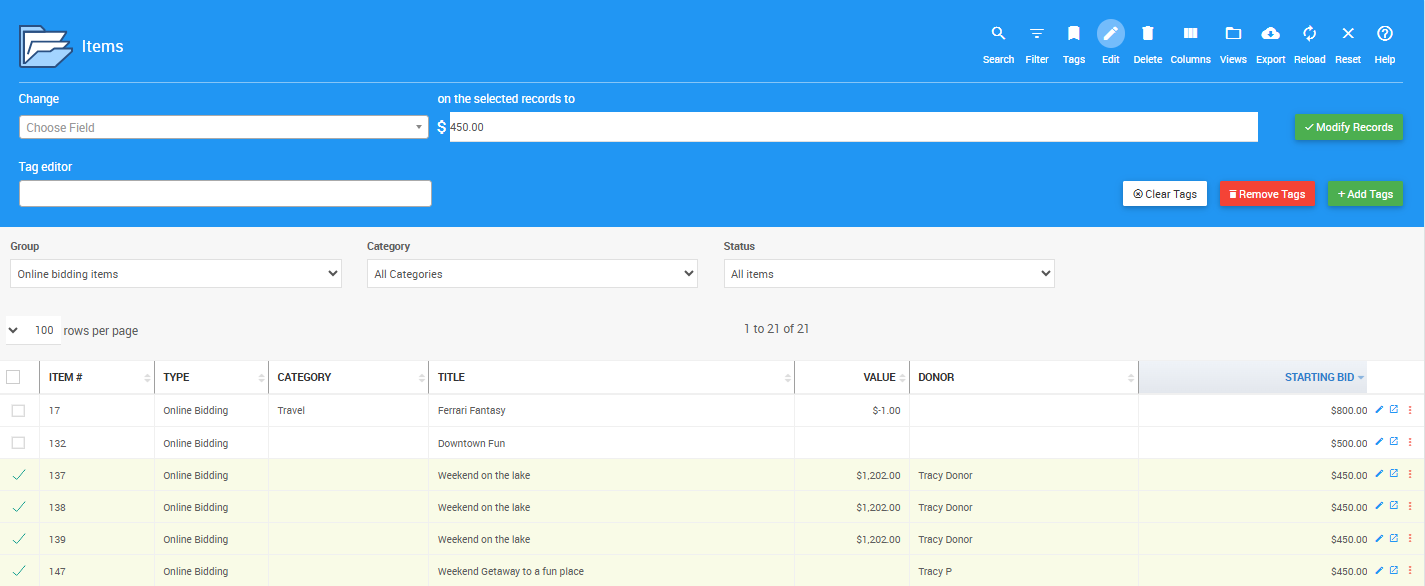
An example from a demonstration event.