
Let Participants Cover Credit Card Fees
Give participants the option to cover credit card processing fees, helping your organization keep more of each donation.
When processing credit card payments, your organization pays processing fees. You can give participants the choice to add a small amount to their payment to cover these fees.
Setting Up Optional Fee Coverage
Step 1: Configure Fee Handling
- From your event dashboard, go to Financials Credit Cards
- Scroll to the Fee Handling (Current Event) section
- Set How should credit card fees be handled to Optional
- Enable Allow participants to cover credit card fees on all payments
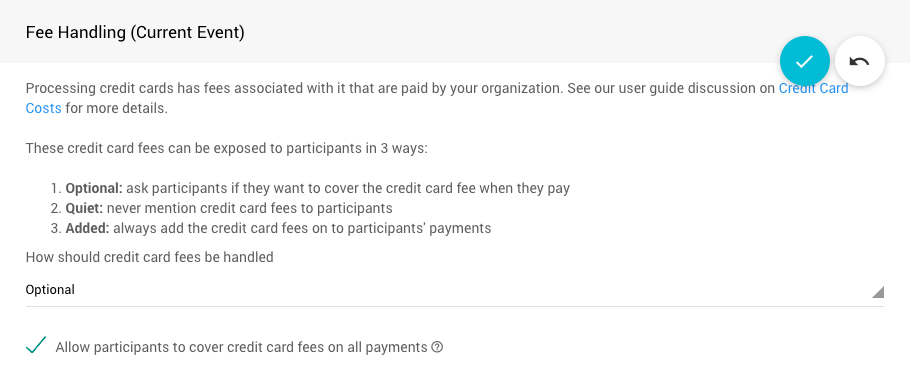
This configuration allows participants to decide for themselves whether to cover the processing fees.
How It Works
During Batch Checkout
When fee coverage is set to optional, the Batch Checkout screen displays clickable buttons next to each participant showing the additional amount they can pay to cover fees.
To access Batch Checkout: Go to Checkout Batch Checkout
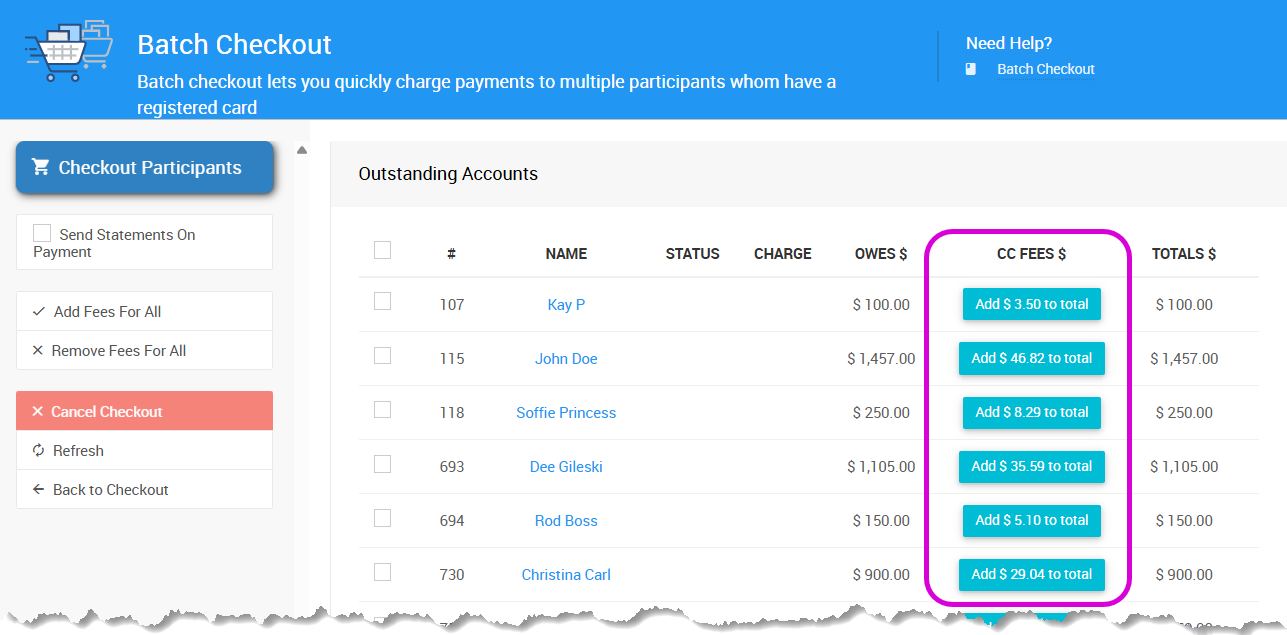
Quick actions are available in the sidebar:
- Add Fees For All - Opt in all participants at once
- Remove Fees For All - Opt out all participants at once
When Adding New Participants
You can opt new participants into fee coverage when adding them to your event by checking the box in the Credit Card panel.
Learn more: Adding New Participants
For Existing Participants
Toggle fee coverage on or off in the Options panel of any participant's record.

Learn more: Participant Details
During Check-In
When checking in participants who have registered a credit card, you can toggle fee coverage on or off at that time.

Learn more: Organizer Check-In
Viewing Fee Coverage Status
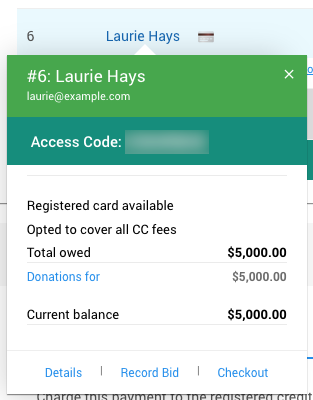
When a participant has opted in to cover fees, you'll see this information on their hover cards:
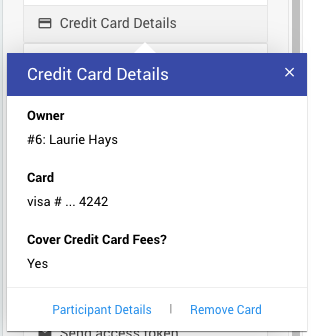
Participant opts out of fees
If a participant has not opted in to cover fees, no indicator will appear on their hover card.
Last reviewed: July 2025