
Registered Credit Cards
Allow participants to save a credit card for faster checkout and easier payment processing at your event.
Credit Card Integration Requirements
Credit card integration must be enabled to use this feature.
See Credit Cards and Credit Card Settings for setup instructions.
What Are Registered Credit Cards?
A registered credit card is securely stored with your payment processor (Stripe or Authorize.Net) and linked to a participant's account. This allows you to charge their card during checkout without re-entering card details.
Important security note:
- Card details are stored with your payment processor, not with Auctria
- Auctria only stores a secure token that represents the card
- You can only see the card type and last 4 digits
- Full card details cannot be retrieved by you or Auctria
Each participant can have one registered card at a time.
Benefits of Registered Cards
- Faster checkout - No need to re-enter card details for each purchase
- Easier bidding - Participants can bid without entering payment info repeatedly
- Streamlined reconciliation - Charge winning bidders quickly after the event
- Better participant experience - Reduces friction in the payment process
How Participants Register Cards
Participants can register a credit card in several ways:
Online Registration
During ticket purchase or registration:
- Participants see a "Save this card for later" option during checkout
- This option is unchecked by default (you can change this under Website Bidder Registration in the Online Payment Behavior section)
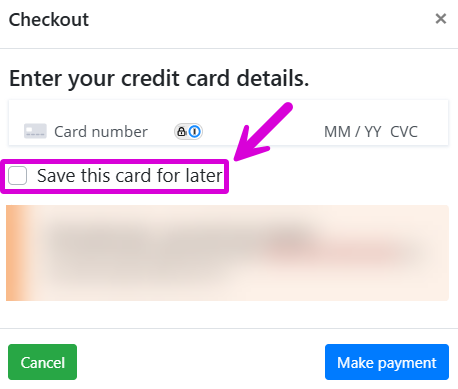
From their account page:
- Participants can add or update their card through their My Account page on your event website
At Your Event
Organizers can register cards for participants:
- When adding a new participant
- From the Participant Details page
- During check-in
Registering a Card for a Participant
Step 1: Navigate to Participant Details
- Find the participant in your participant list
- Click their name to open their Participant Details page
- Scroll to the Credit Card section
- Click Register Credit Card
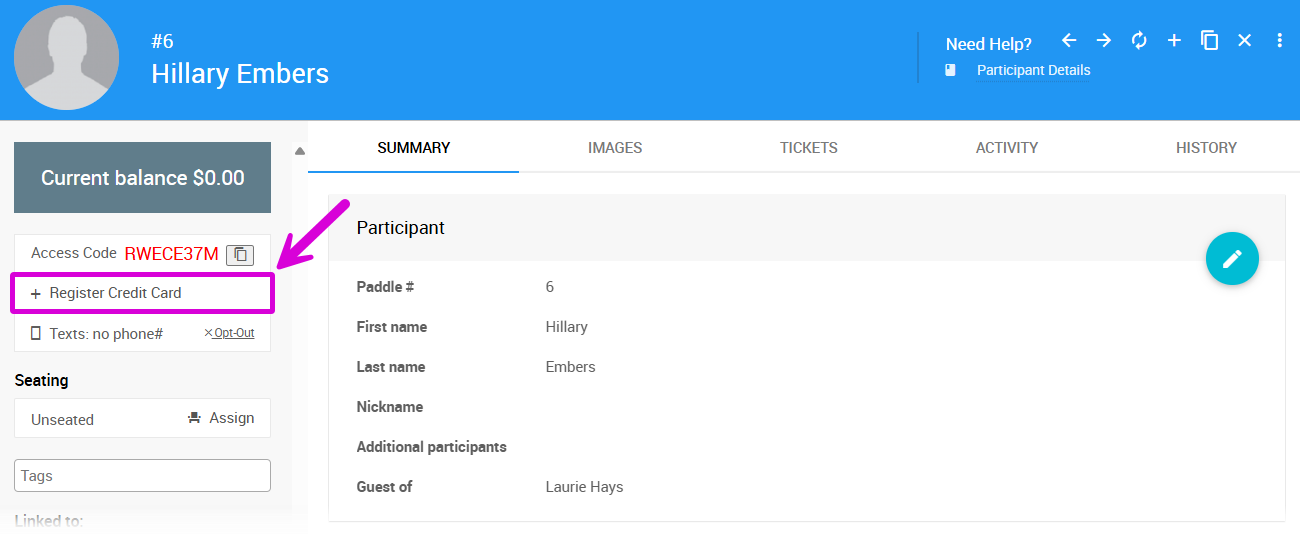
Step 2: Enter Card Information
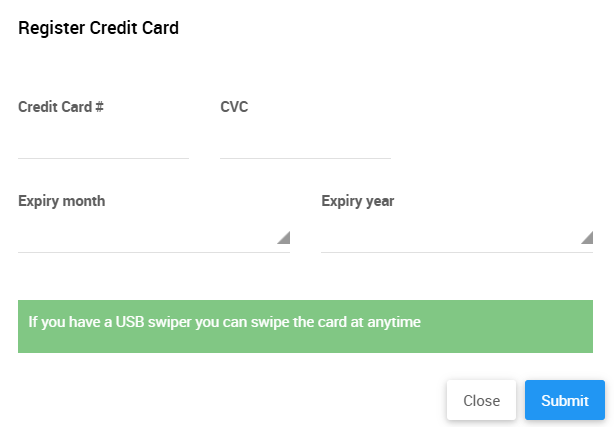
A Register Credit Card window will appear:
Option 1: Use a Card Reader
- If you're using Stripe with an enabled card reader, click Swipe Card
- Swipe the card through your reader
- The card number and expiration date will populate automatically
- You'll still need to enter the CCV manually (it's not on the magnetic strip)
Learn more: Credit Card Readers and Swipers
Option 2: Manual Entry
- Enter the card number
- Enter the CCV security code
- Enter the expiration date
CCV Requirements
By default, the CCV security code is required. You can make it optional in your Credit Card Settings, though we recommend keeping it required for security.
Step 3: Submit
Click Submit to register the card.
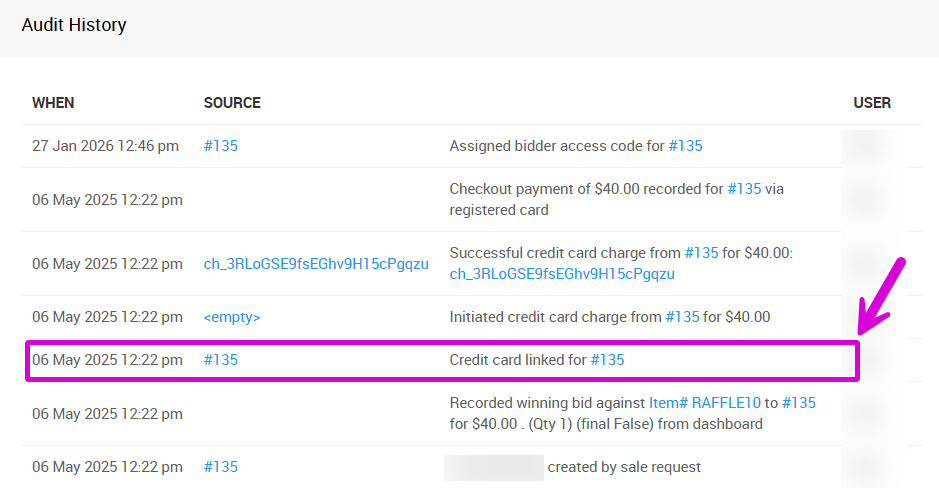
The participant's details page will now show they have a registered card, and the History tab will record when the card was added.
Using Card Readers
Card readers can only be used to register cards. They cannot directly charge a card. All charges must be initiated through the Auctria platform by either a participant or an organizer.
Viewing Card Details
Once a card is registered, you'll see credit card information on the participant's details page:
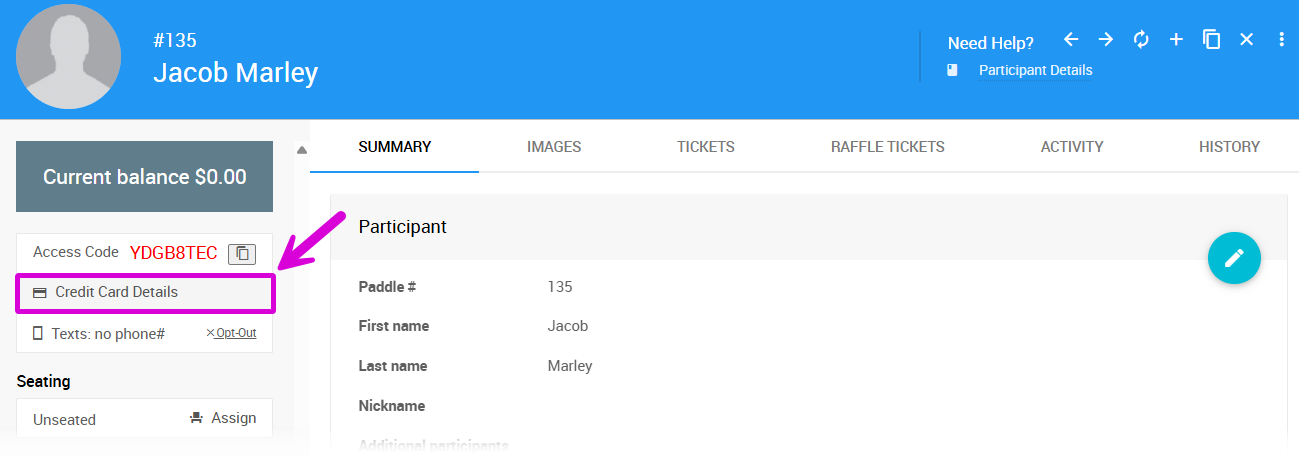
Hover over Credit Card Details to view the available information:
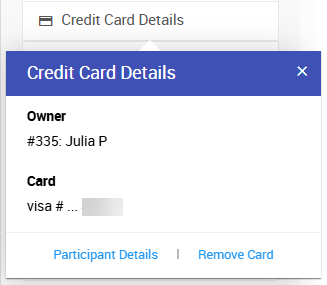
You'll see:
- Card type (Visa, Mastercard, etc.)
- Last 4 digits of the card number
- Expiration date
Changing or Removing a Registered Card
To update a participant's card, you must first remove the existing card, then register the new one.
Remove a Card
- Go to the participant's details page
- Click Credit Card Details
- Click Remove Card
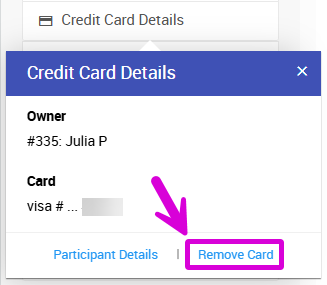
- Confirm the removal in the popup window

- Click Continue
After removal, you can register a new card following the steps above.
Requiring Cards for Online Bidding
You can require participants to have a registered card before placing online bids.
To enable this setting:
- Go to Event Website (left sidebar) Online Bidding (left side, Online Features)
- Find Require A Registered Credit Card To Bid in the Who Can Bid section
- Enable the option
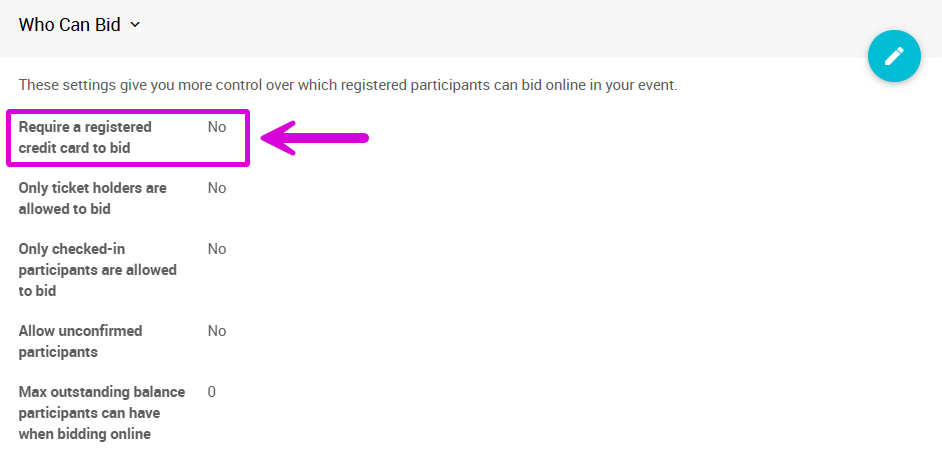
When enabled, participants without a registered card will be prompted to add one before they can bid online.
Requiring Card Registration for Ticket Purchases
Participants cannot be forced to save their card during ticket purchase. Some people prefer not to save cards online or may want to use a different card for purchases versus bidding.
Should You Require Registered Cards?
Benefits of requiring cards:
- Ensures you can charge winning bidders
- Faster checkout process
- Reduced payment collection issues after the event
Potential drawbacks:
- Some participants may be reluctant to register cards online
- Could reduce participation if people are uncomfortable saving card details
- Not a guarantee the card will work (cards can expire or hit credit limits)
Our Recommendation
We don't typically see bidders refusing to pay for won items, and requiring cards may reduce participation. Consider these alternatives:
- Send Participant Statements after the event with Pay Online links
- Make cards optional but encourage registration
- Only require cards for high-value items or VIP bidders
Bottom line: Making participation as easy as possible typically maximizes fundraising success.
Requesting Cards from Participants
You can send an automated email to participants who don't have a registered card:
See Request Registered Credit Card Email for more information.
Last reviewed: May 2024