How To Change Stripe Test Mode Only
How to change the connection type you are using with Stripe to Test Mode Only.
It is possible to connect a Stripe account that only supports test transactions.
This can happen if either:
- you check the 'test mode only' checkbox when connecting the account; or,
- you connect to a Stripe account that was not fully activated.
If you connect to a Stripe account that was not fully activated, activating that account later will not change the status on Auctria's side.
You can see if you account is in test mode only by clicking on Credit Cards from the auction dashboard, if you see:
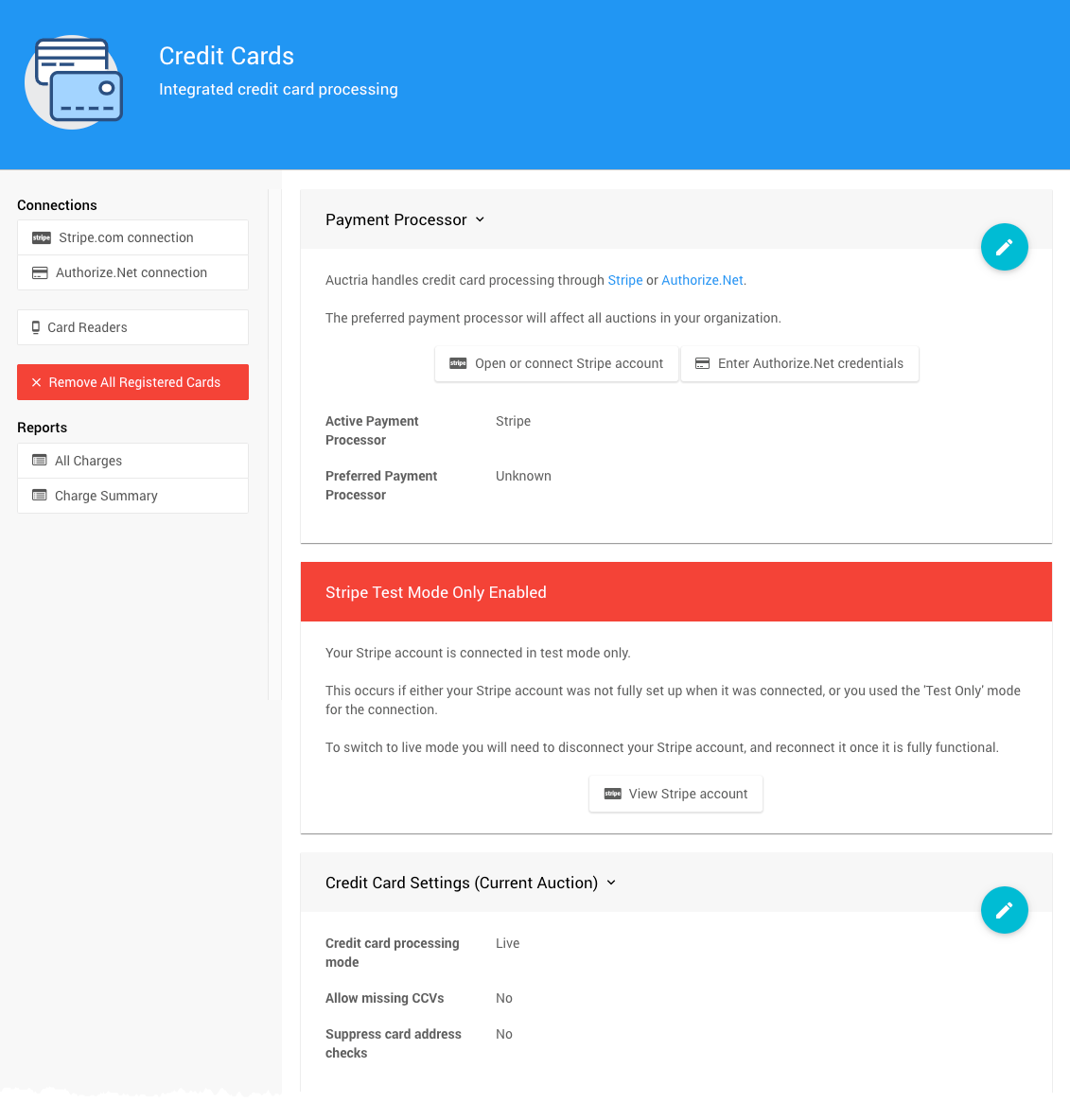
Test Mode and the Event Credit Card Settings
Stripe Test Mode Only Enabled overrides the Credit Card Settings of the event.
Then you will not be able to process live charges until the connection is replaced.
To switch to a 'live' Stripe use the following steps:
Go to stripe.com/dashboard and sign in to your Stripe account
Using the same browser tab, sign into Auctria.
Click on Credit Cards Stripe.com connection.
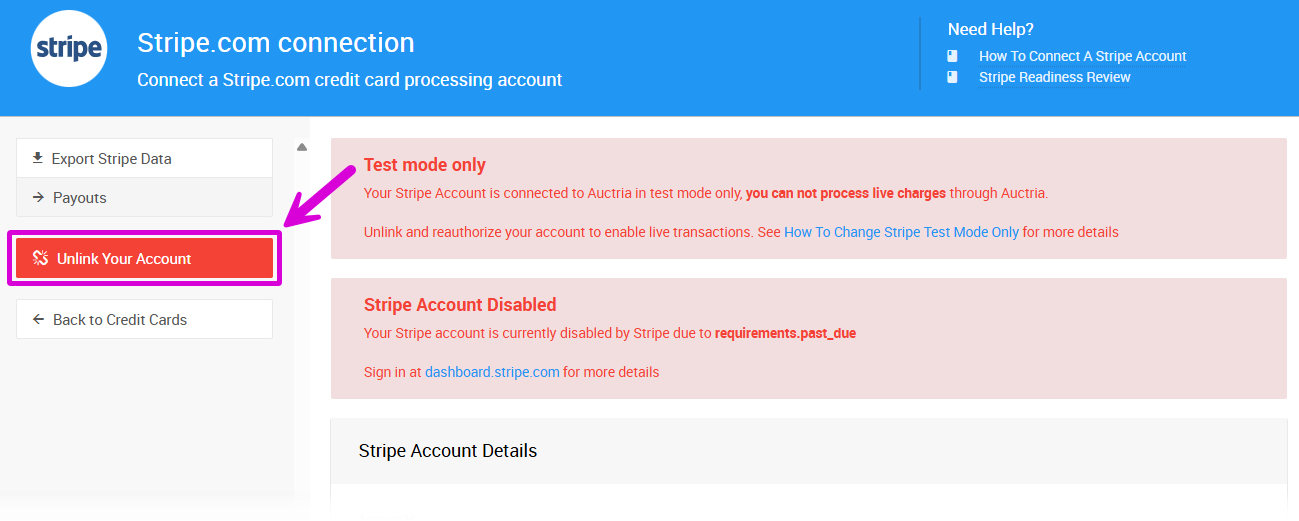
Click on Unlink Your Account
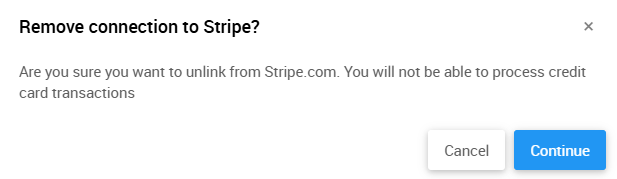
Click Continue to remove the current Stripe connection.
Click on Connect Stripe Account
Check the I agree... checkbox.
Agree to the Stripe authorization page
Your Stripe account should now be connected.
➡️ See How To Connect A Stripe Account for more details.
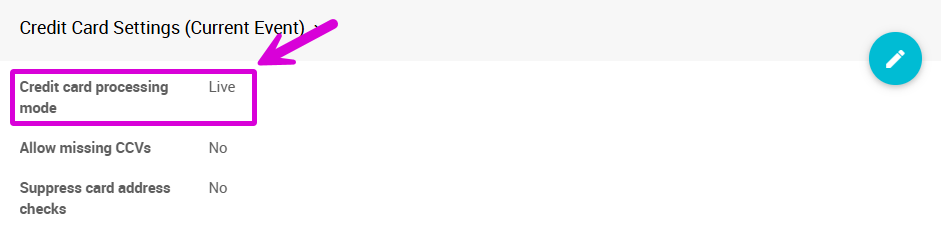
To verify that your auction is using Live mode for credit card processing click on Credit Cards and check the Credit card processing mode setting
See Stripe testing (at Stripe.com) for information about testing your Stripe integration.
Last reviewed: January 2024