Website History
Learn about the Website History feature to review website snapshots, open or download a previous version, or restore one as the active website.
What is Website History?
Never worry about losing your work again! The Website History page gives you a complete record of your saved event website snapshots, so you can review, revisit, or roll back any time you need to.
🔍 Getting Where You Need To Be
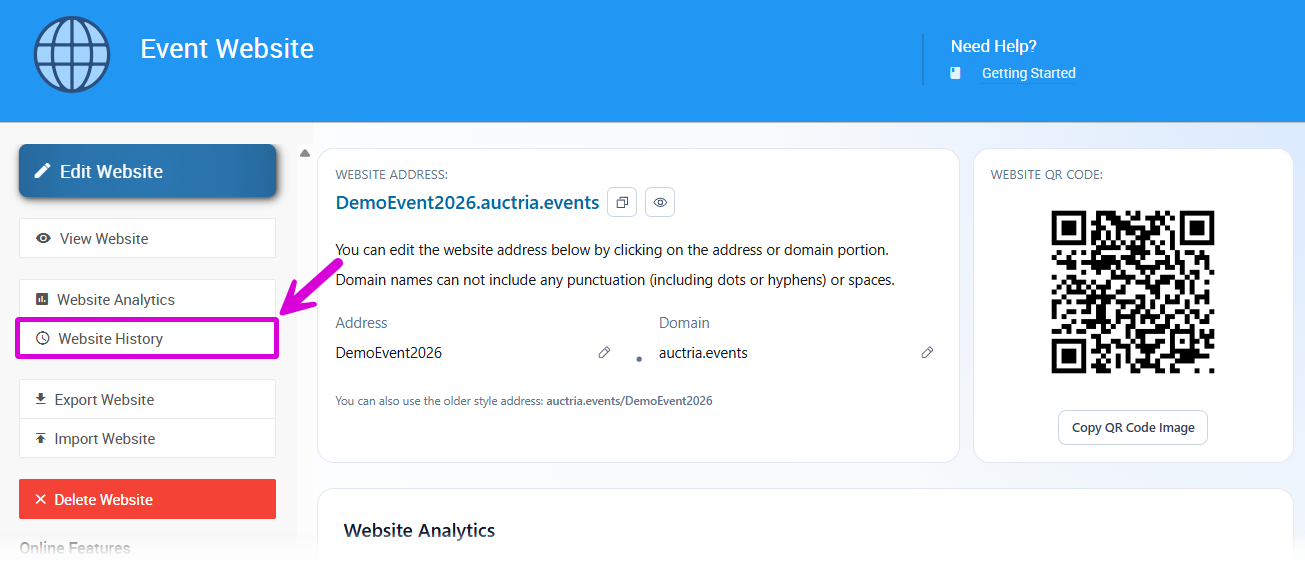
To access Website History:
- Click Event Website on the left sidebar of your Auctria dashboard.
- Click Website History on the left side of the page.
📋 Website History Page
Your saved website snapshots are displayed in the Timestamp section, listed in chronological order. Each entry represents a saved version of your event website.
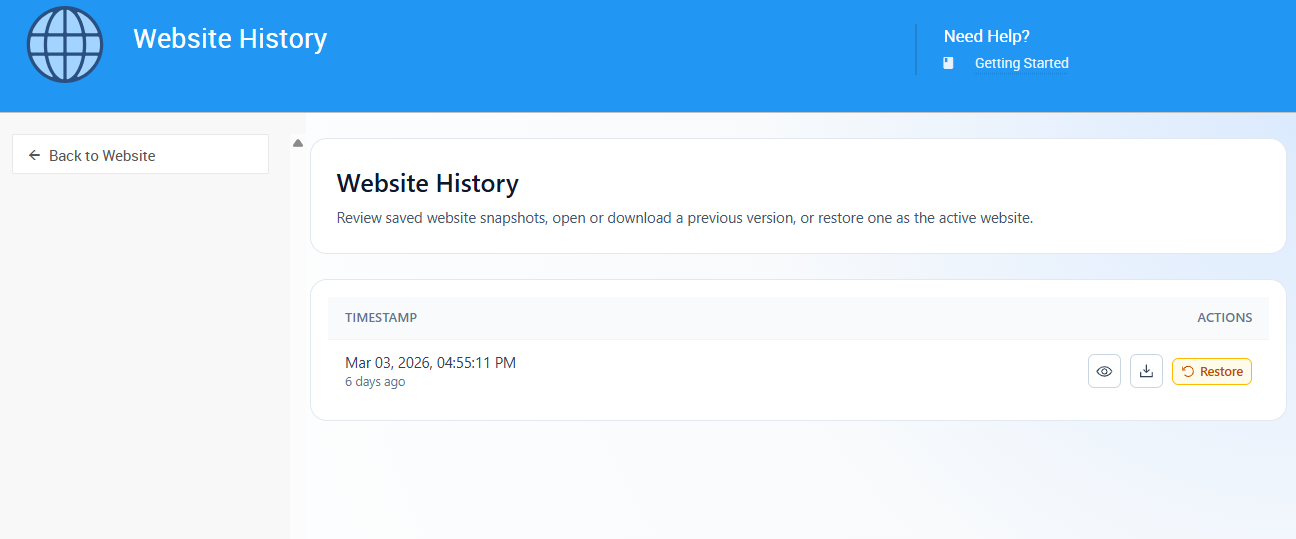
For each snapshot, you have three options available on the right side of the entry:
👁️ View a Snapshot
Click the eye icon on the right of a snapshot entry to open and preview that version of your event website.
⬇️ Download a Snapshot
Click the Download button on a snapshot entry to download that version of your event website to your device.
♻️ Restore a Snapshot
Click the Restore button on a snapshot entry to set that version as your currently active event website.
Overriding Your Active Event Website
Restoring a snapshot will replace your currently active website with the selected version. Make sure to review the snapshot before restoring!
That's it! With Website History, you're always just a click away from any previous version of your event website.
Last reviewed: March 2026