
How To Copy Your Website Using Export And Import
Learn how to copy your Event website using Import and Export functionality.
There may be cases where you want to reuse a previous event's website layout and colors for a new event. This can be done quickly using the Export Website and Import Website functions.
📤 Export Your Website
Pre-Requisites
- An Event Website has been created (see How To Create A New Event Website if needed)
From your main dashboard, click Event Website, then click Export Website in the left sidebar.
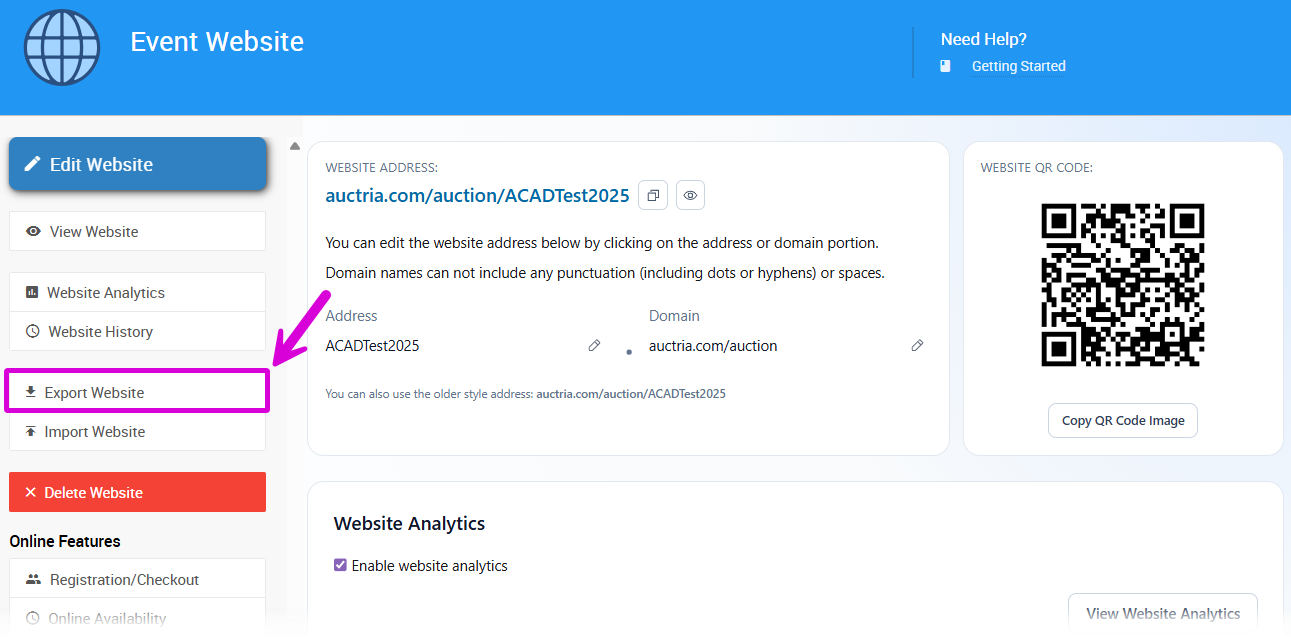
Clicking Export Website immediately generates a .dat file and triggers a download. The file name will begin with website_export_ followed by a timestamp, for example: website_export_2022-03-07T19_25_44Z.dat. You'll find it in your browser's downloads folder.
🎯 Switch To Your Target Event
Before importing, make sure you are viewing the event you want to apply the website to.
No Confirmation
The Import Website operation does not have a confirmation step and will immediately overwrite any existing website for the event.
📥 Import Your Website
From the Event Website page, click Import Website.

A file selector will open. Click Choose File, navigate to your exported .dat file, and select it.
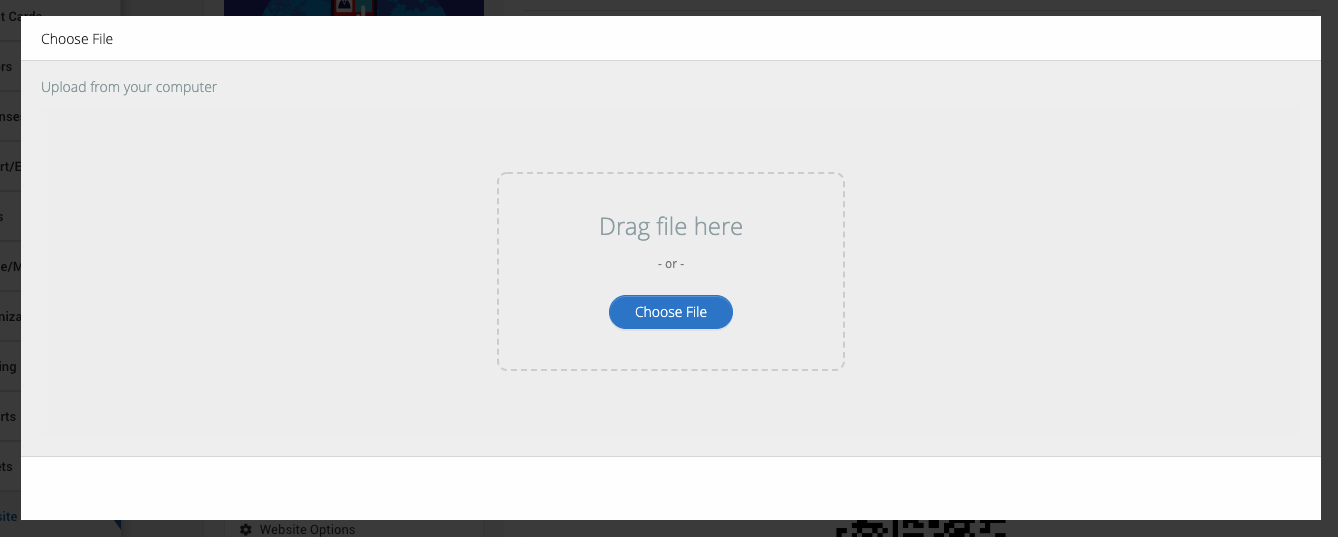
Once selected, the file will be uploaded and processed. The page will refresh and the imported website will be applied to the current event.
🌐 Update Your Website Address
After importing, you may want to update the website address. From the Website Address section of your Event Website page, click the Address field and type your preferred address. Use the Domain dropdown to select a domain relevant to your organization, if needed.
Website Address Restrictions
Website Addresses should only use letters, numbers, and hyphens (-). Using other special characters or punctuation could make your auction website unreachable.
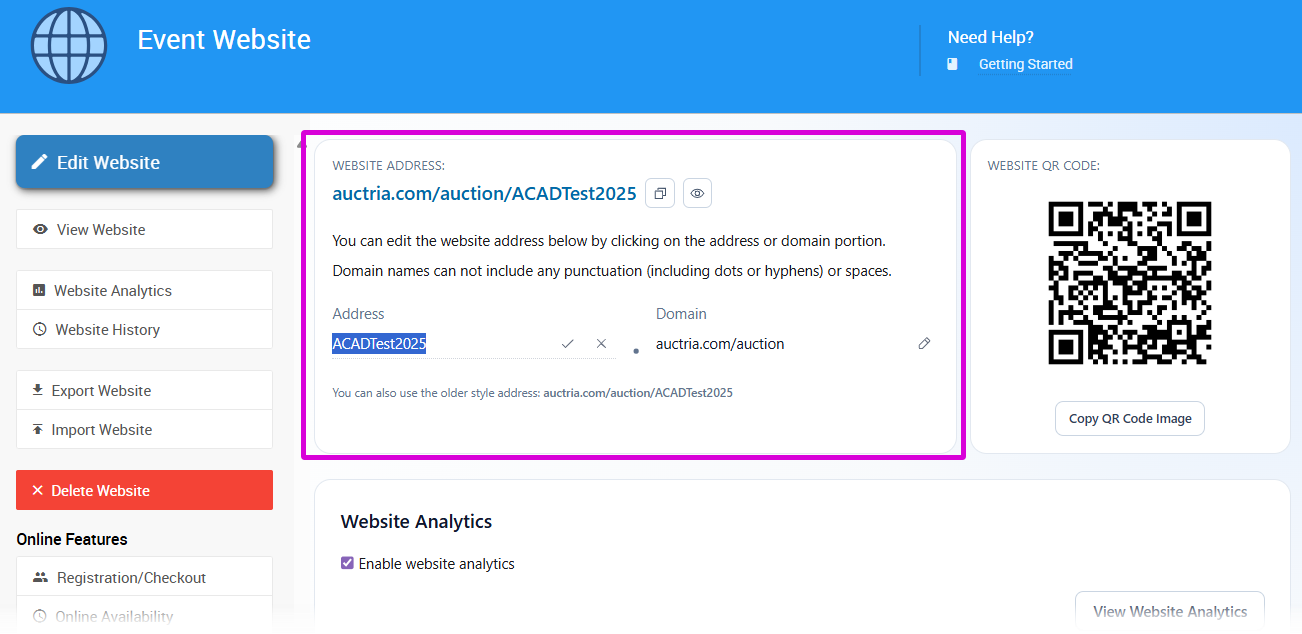
See How To Set The Website Address for more information.
⏪ Restore a Previous Website Version
To restore an earlier version of your event website, click Website History in the left sidebar of the Event Website page.
Copy Event Website
If you haven't created your new event yet, an alternative approach is to use the Copy event web site option when using the Copy Event function.
Copy Event - SettingsSee Website History for more details.
Last reviewed: March 2026